
A GUIDE MANITOBA'S TIME CHANGE
What’s changing on November 1, why it can throw off your computer and calendar, and what to do about it.
QUICK LINKS
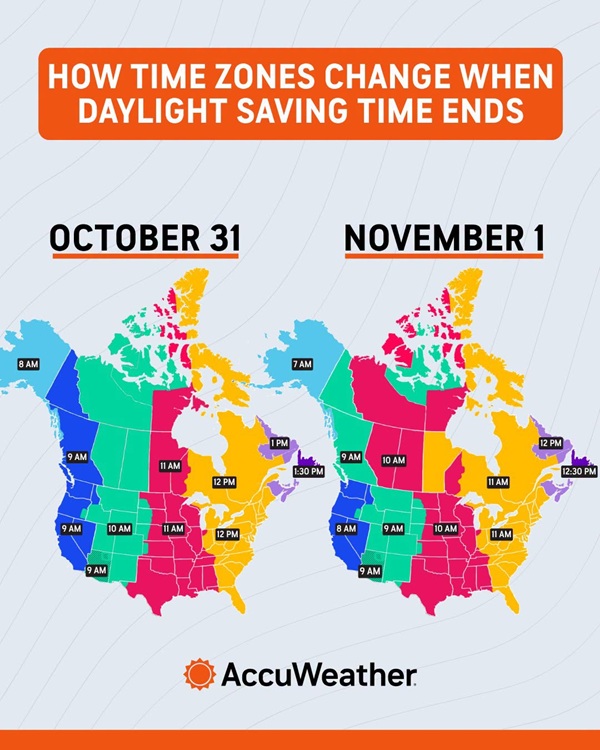
Premier Wab Kinew has announced that Manitoba will stay on daylight saving time for good. On Sunday, November 1, we will NOT be turning our clocks back.
For people, that means one less clock to change. For computers and calendars, it’s a bit more complicated. Here’s what everyone in Manitoba should know, plus a few simple steps to make sure your meetings show up at the right time.
WHAT TO KNOW
Why This Is Tricky for Technology
Your computer, phone, and apps follow a set of rules that tell them when to change the clock. For years, Manitoba used the same “Central Time” rules as much of Canada and the U.S. Those rules still say clocks go back on November 1. Manitoba’s new rule says they don’t. That means every device and app needs to learn the new rule.
Why Your Meetings Need Extra Care
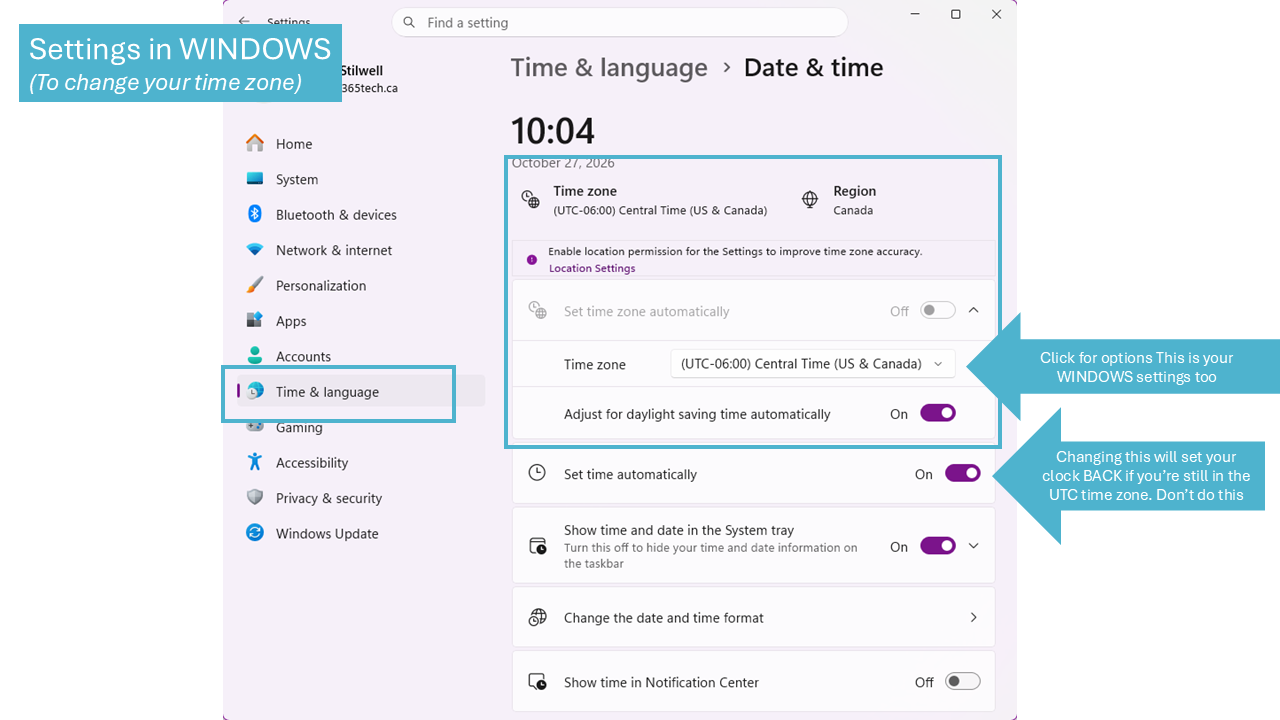
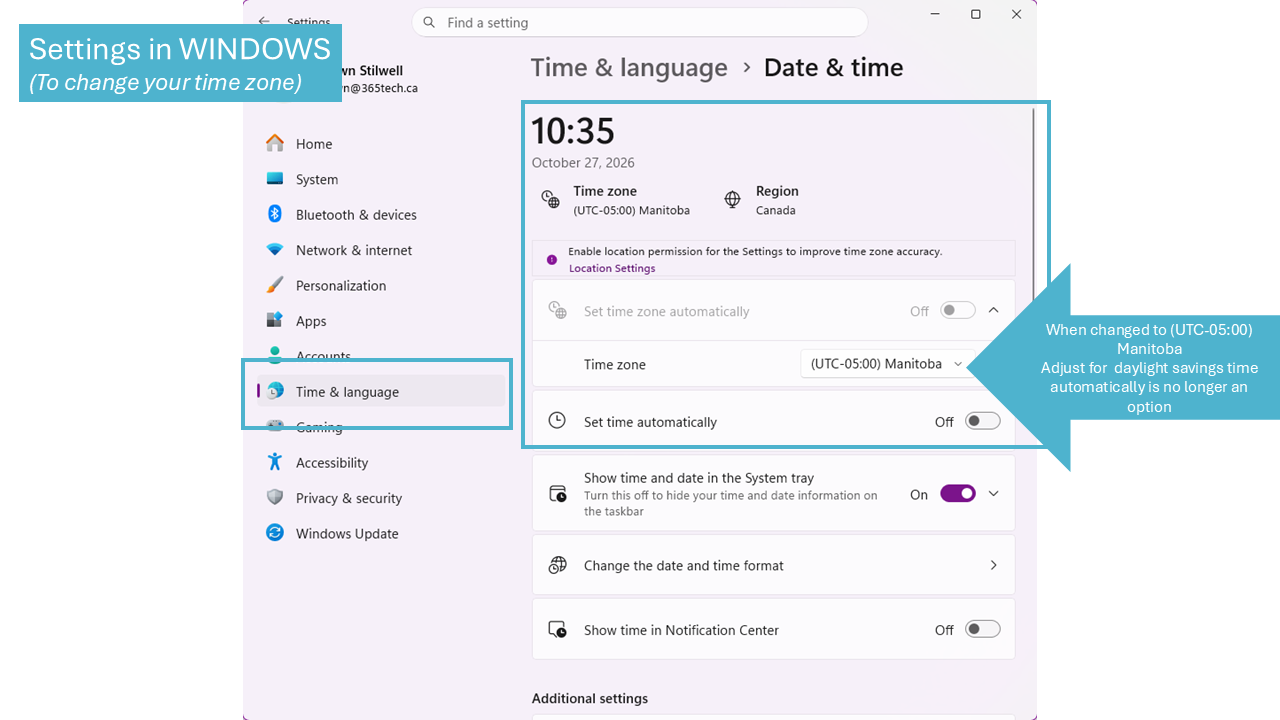
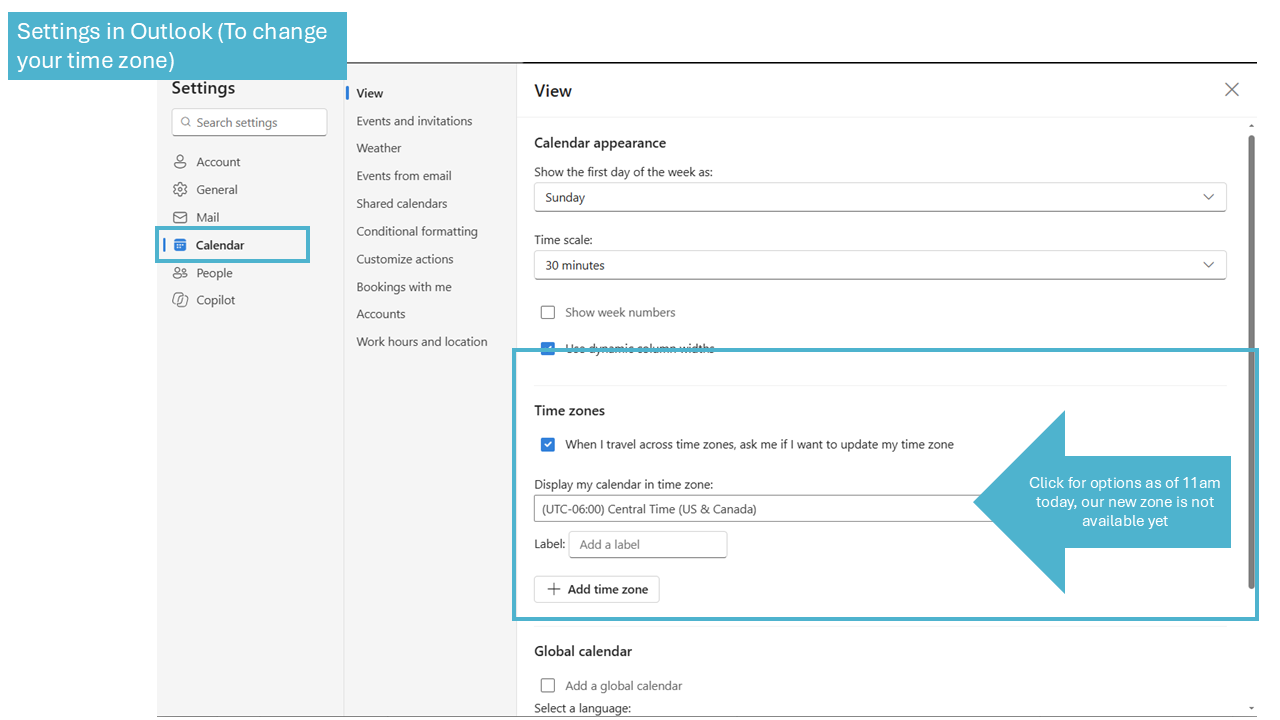
On October 13, Microsoft released an update that adds a new time zone called (UTC-05:00) Manitoba.
Here’s the catch: Microsoft’s update does not fix meetings that are already in your calendar.
When a meeting is created, it gets saved with the time zone rules in place at that moment. Meetings set up before the update still follow the old rules. After November 1, those meetings could show up one hour early or one hour late.
What You Should Do
Install updates and restart
Ensure you have completed your Microsoft update by restarting your computer when it asks you to.
Setting new meetings after November 1
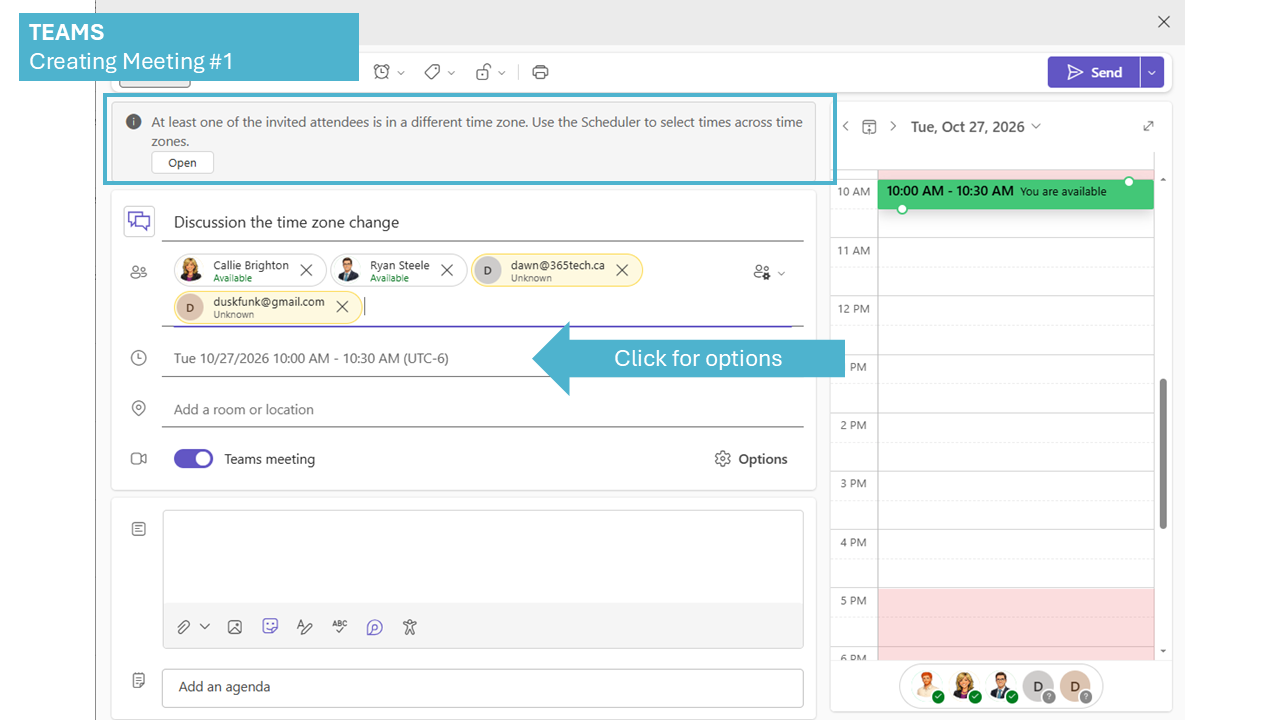
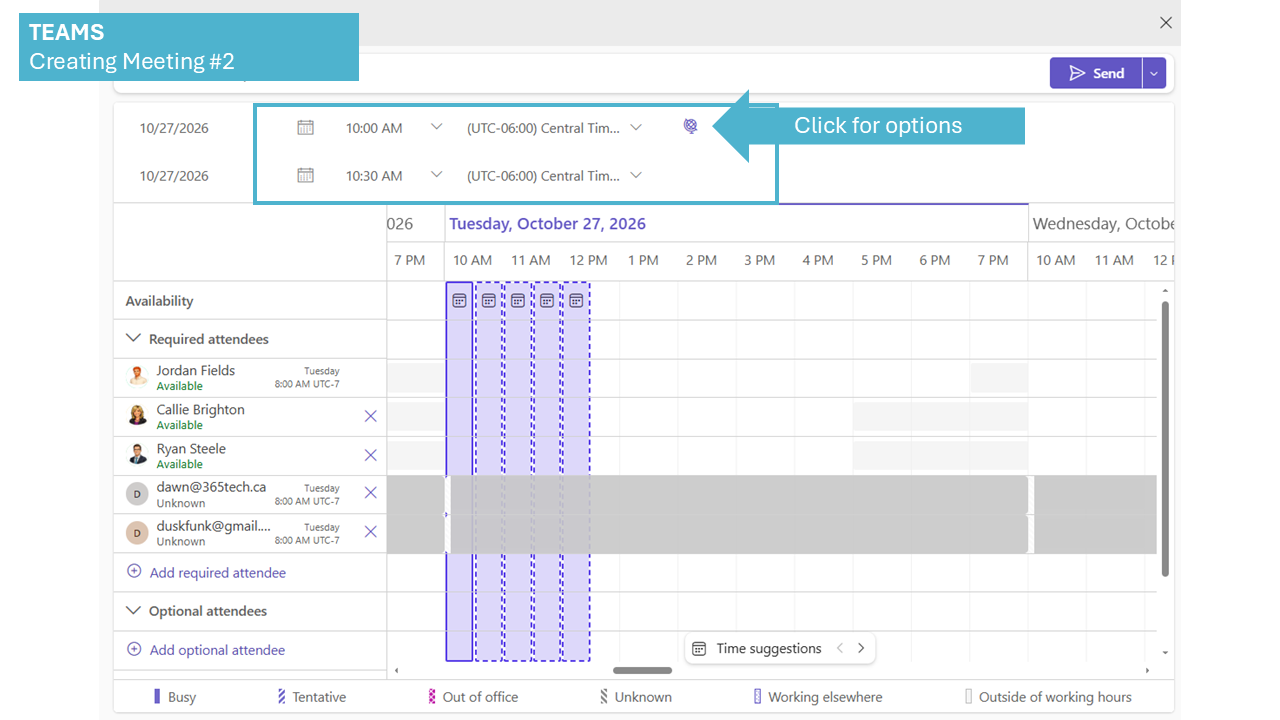
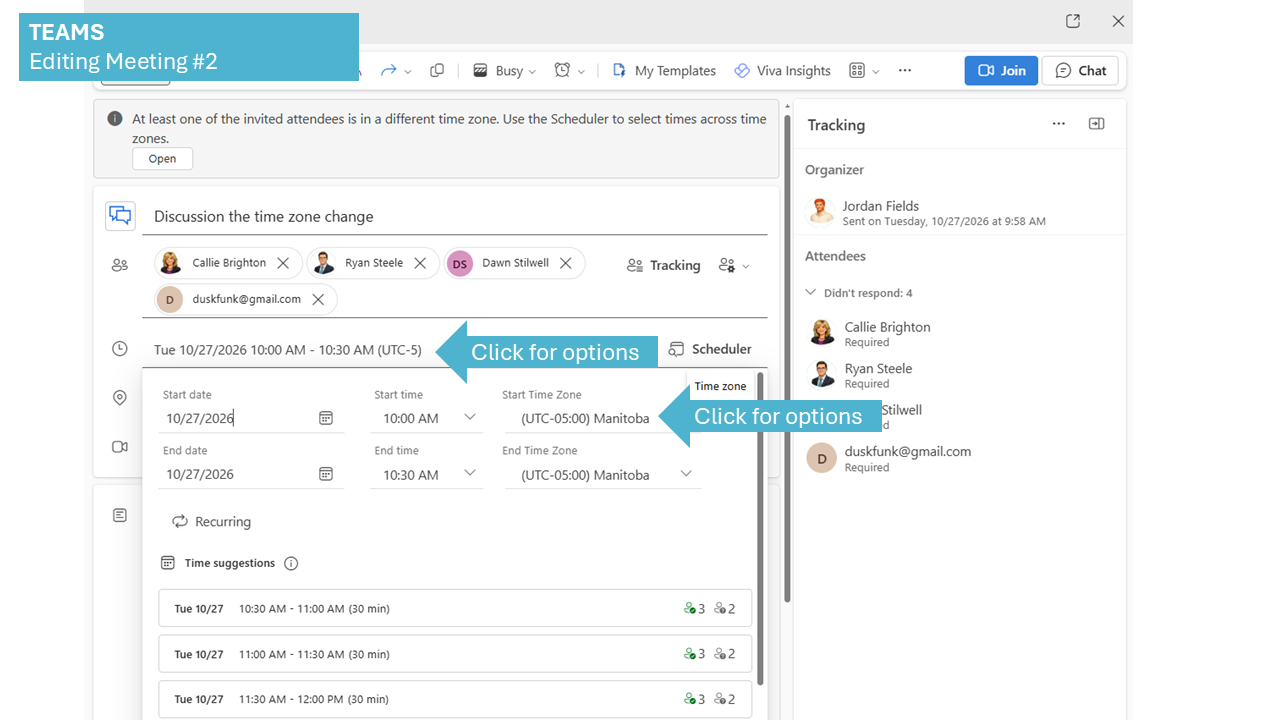
When scheduling a new meeting, click on the globe icon 🌐 in your Microsoft Teams or Outlook calendar and ensure your time zone is set to (UTC-5:00) Manitoba before sending your meeting invitation.
Manually update meetings
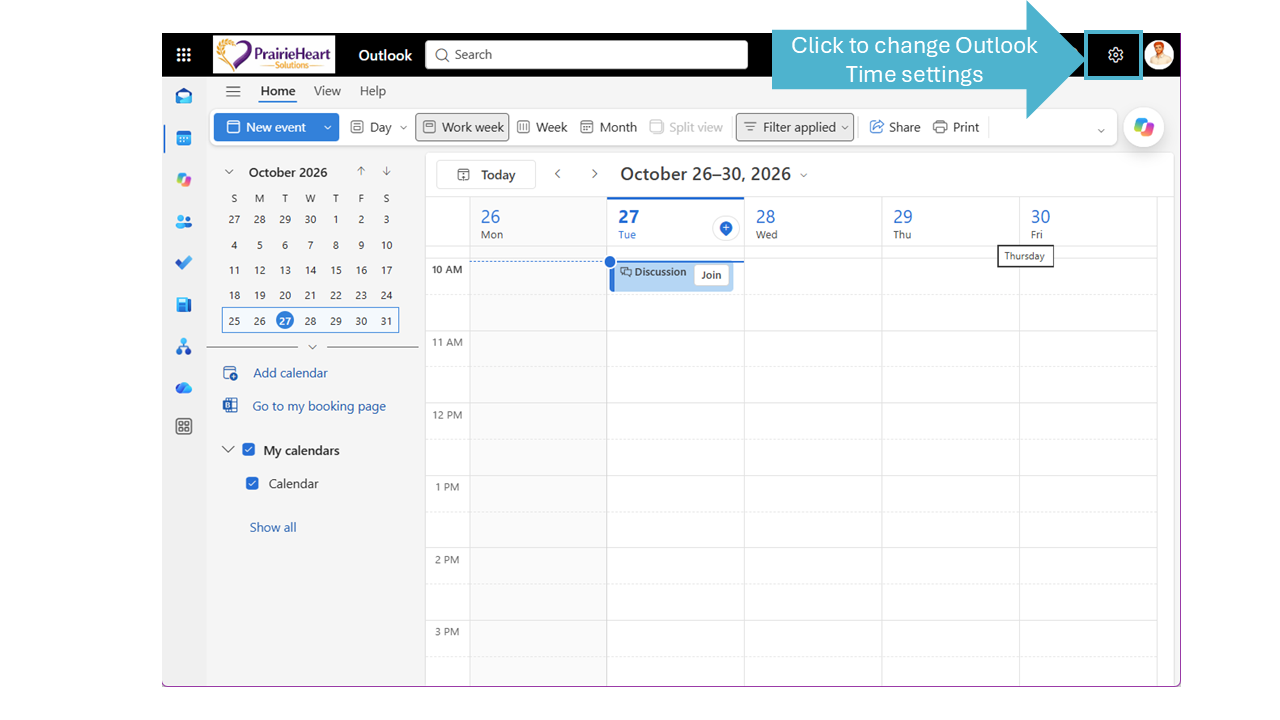
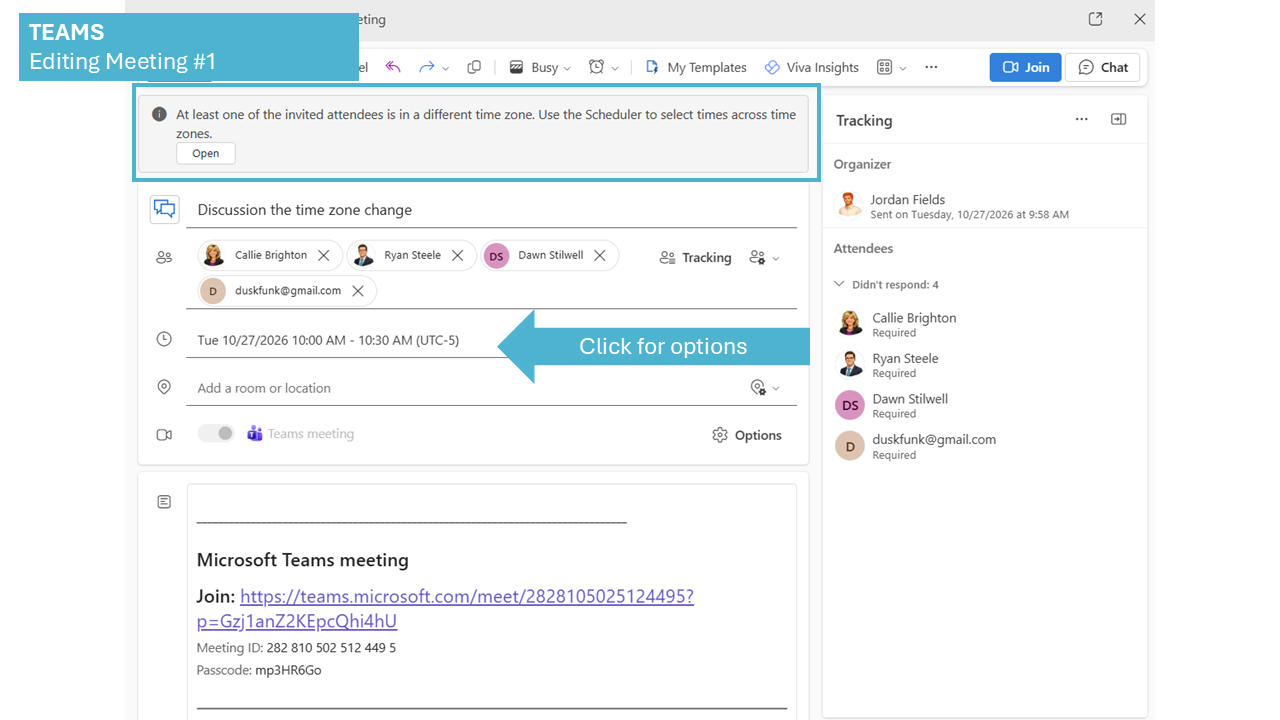
Only a meeting organizer can update meeting times. For any meetings taking place after November 1st, you must open the meeting and change the time zone manually and update the invitation. For recurring meetings, you will need to edit the recurrence so it shows the time zone as well. (see below)
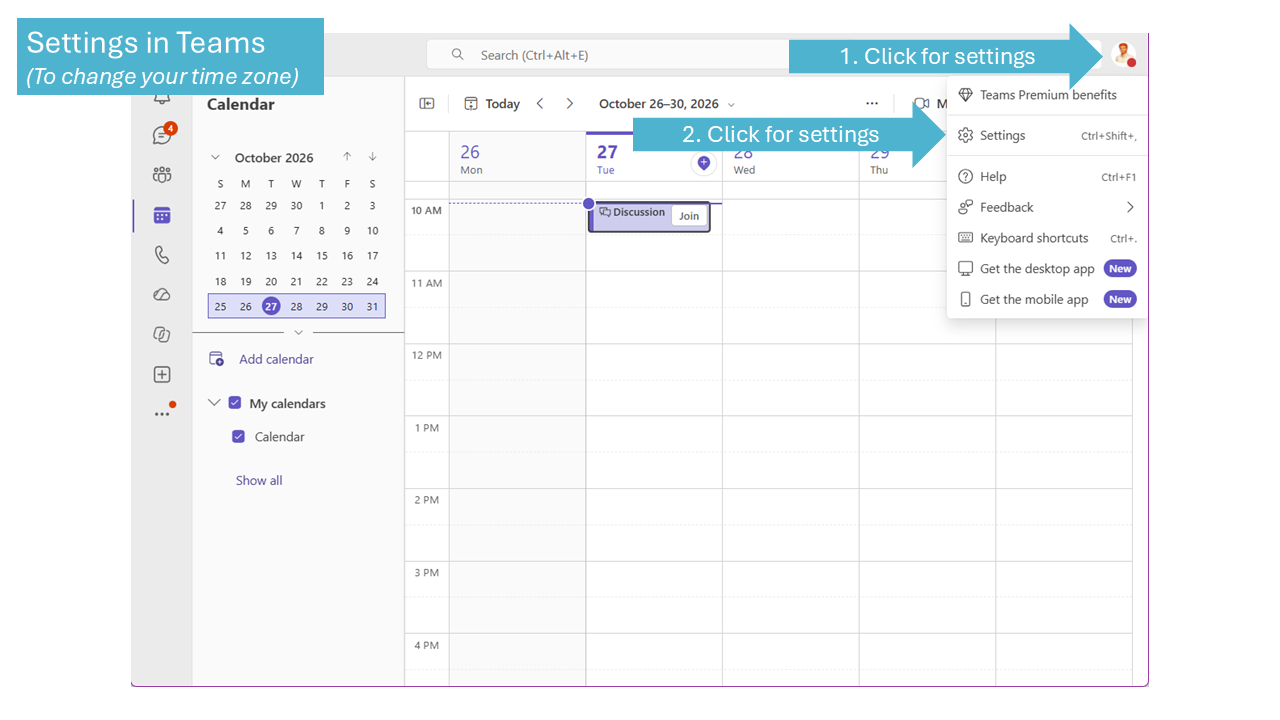
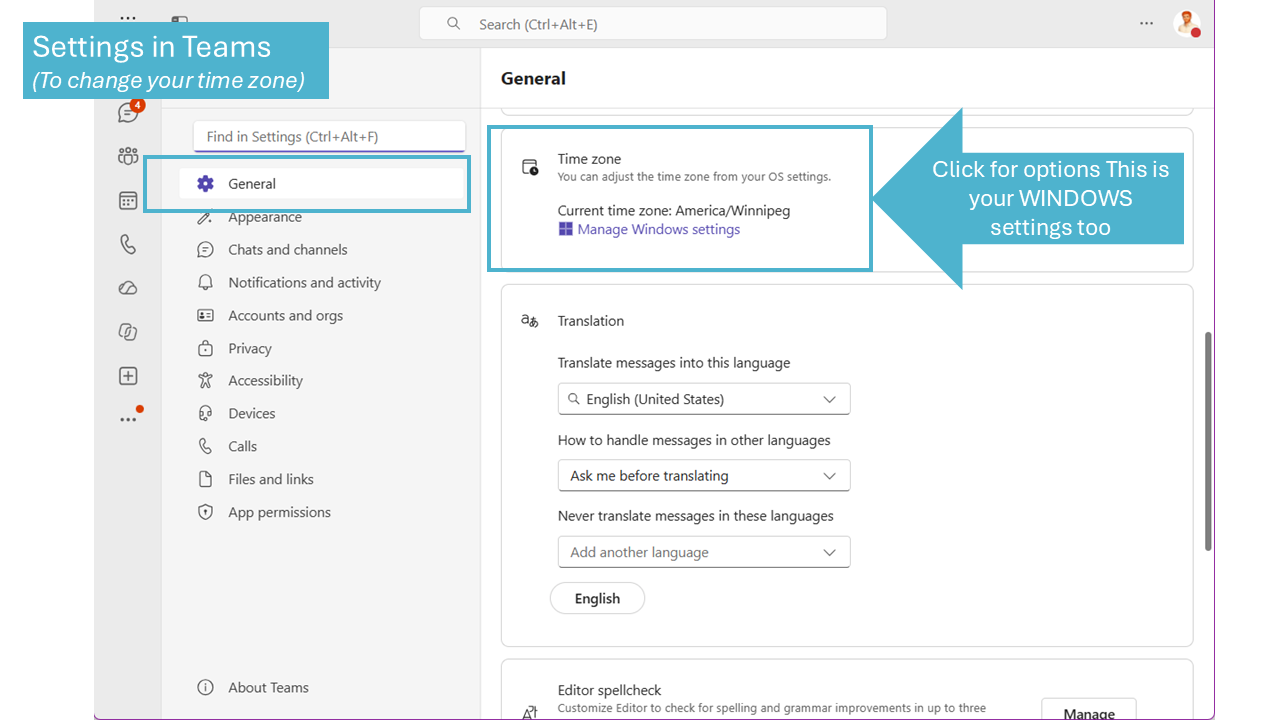
UPDATING YOUR TIME ZONE & MEETINGS
*Only the organizer of a meeting can update details
When a meeting is created, it gets saved with the time zone rule that was in place at the moment of booking. For all meetings occuring on or after November 1, they will appear one hour after the intended scheduled time. You must fix these meetings manually, and only the organizer of the meeting can perform this update.

FREQUENTLY ASKED QUESTIONS
The Basics
Your Computer and Devices
Your Meetings
Questions? We’re Here to Help
Submit a ticket or call us at 1 (877) 343-3155.
To help us fix things quickly, please include:
- Your name and location
- The device you're using (work computer, phone, tablet)
- The app showing the wrong time (Outlook, Teams, or another app)
- The time zone shown on your computer and in Outlook, if you can find it
- The meeting name, date, and time
- Whether it's a one-time or repeating meeting
- Whether you set up the meeting or were invited to it
- A screenshot showing the problem